Webhook For Data Ingestion Into Google Sheets
Motivation
This may be a biased view, but as people grow older, they tend to become more prone to illness—often degenerative diseases. Of course, not everyone does.
I’ve been quite conscious of living a healthy lifestyle since childhood. My parents instilled this through their old-school, strict Asian parenting style. They made sure I exercised regularly (sometimes by “gently” encouraging me—but with sandals in their hand 😝) and consistently served healthy food at home. It’s a habit I’m forever grateful for. Throughout adulthood, I’ve had only minor health issues, like the occasional cold or flu.
However, the world is changing. I was stunned when I came across recent data showing a rise in young people in my country suffering from diabetes and Chronic Kidney Disease (CKD), pushing the national healthcare budget to the sky. The prevalence even continues to grow. My social media feeds echo the same concern, with more doctors and health practitioners speaking up about how their patients with degenerative diseases are getting younger—many without obvious warning signs.
Despite my efforts to maintain good health, I’m honestly quite worried. I’ve been independently tracking my vital signs at home, such as heart rate and blood sugar levels, but I never saved the data because everything seemed normal, with no noticeable deviations. Now, I realize I need that historical data.
So, here’s the background. The idea is simple: when I perform regular health checks at home, I get the readings and record them in a tracking sheet. However, I’m often too lazy to open my computer and enter the data manually. I want the process to be as easy as grabbing my phone, typing in the numbers, and having the data automatically saved for later use, such as visualization. That’s where webhooks come into play.
Tech Stack:
- Telegram Bot API (Webhook)
- Google Apps Script (Backend)
- Google Sheets (Database)
A webhook is a URL that receives automatic notifications when events happen, instead of having to constantly check for updates.
Steps:
-
Create the Telegram Bot
- Open Telegram and search for @BotFather
- Send /newbot command
- Choose a name for our bot
- BotFather will give us an authorization token (save this for later)
- Check if our bot functions properly:
https://api.telegram.org/bot<token>/getMeChanged "token" with our token from BotFather. We will get such a response in case Bot is setup properly.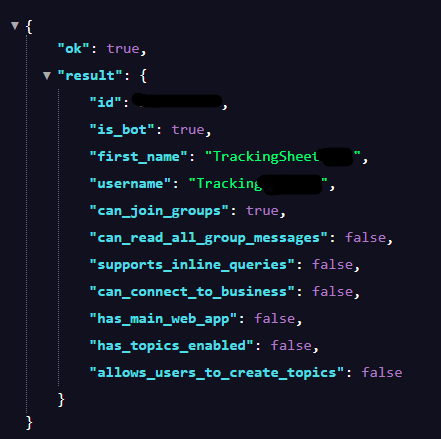
Successful Bot setup
The telegram API documentation can be accessed here
-
Set Up Google Sheets
- Create a new Google Spreadsheet. This will serve as our database to log messages
- Note the Spreadsheet ID from the URL:
https://docs.google.com/spreadsheets/d/{SPREADSHEET_ID}/edit
-
Write code in Google Apps Script Editor
-
In the Google Sheet, go to Extensions -> Apps Script (or Tools > Script Editor)
-
This will opens the code editor where we'll write JavaScript code
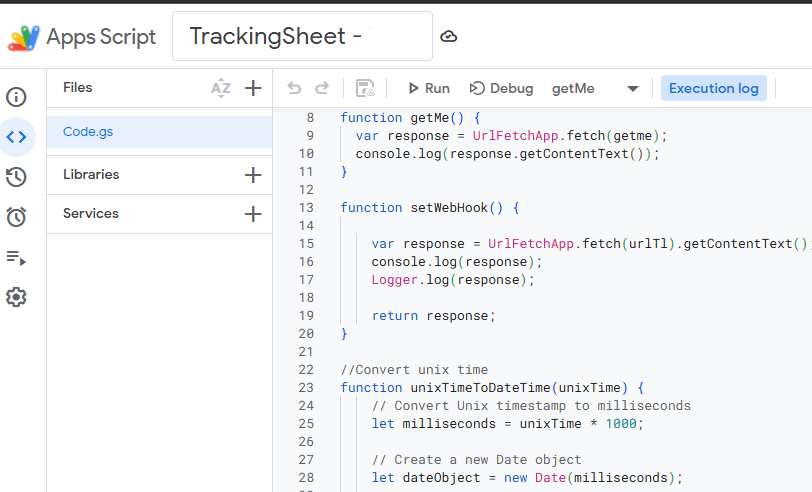
Apps Script code editor -
Writing code:
code.gsvar tokenTl = "OUR_BOT_TOKEN"; // This is our telegram token var webAppUrl = "OUR_WEB_APP_URL"; //We get this after deployment var urlTl = "https://api.telegram.org/bot" + tokenTl + "/setWebhook?url=" + webAppUrl; var replyTl = "https://api.telegram.org/bot" + tokenTl + "/sendMessage"; var getme = "https://api.telegram.org/bot" + tokenTl + "/getMe"; function getMe() { var response = UrlFetchApp.fetch(getme); console.log(response.getContentText()); } function setWebHook() { var response = UrlFetchApp.fetch(urlTl).getContentText(); console.log(response); Logger.log(response); return response; } //Convert unix time function unixTimeToDateTime(unixTime) { // Convert Unix timestamp to milliseconds let milliseconds = unixTime * 1000; // Create a new Date object let dateObject = new Date(milliseconds); // Extract date and time components let year = dateObject.getFullYear(); let month = ("0" + (dateObject.getMonth() + 1)).slice(-2); // Months are zero-indexed let day = ("0" + dateObject.getDate()).slice(-2); let hours = ("0" + dateObject.getHours()).slice(-2); let minutes = ("0" + dateObject.getMinutes()).slice(-2); let seconds = ("0" + dateObject.getSeconds()).slice(-2); // Construct the normal date-time format string let dateTimeString = year + "-" + month + "-" + day + " " + hours + ":" + minutes + ":" + seconds; return dateTimeString; } function sendTlReply(chat_id, text) { var data = { method: "post", payload: { parse_mode: "HTML", chat_id: String(chat_id), text: text } } var response = UrlFetchApp.fetch(replyTl, data).getContentText(); console.log(response); return response; } function validation(spreadsheetName, id, data) { if (id === XXXX || data !== "/start") { spreadsheetName.appendRow(data); //Just a small motivation for me 😃 var text = "Saved. Have a great life! Do more sports and eat healthy food!"; sendTlReply(id, text); } else { var text = "You're not authorized!!"; sendTlReply(id, text); } } function doPost(e) { //This is our google sheet URL var sheetURL = "https://docs.google.com/spreadsheets/d/OUR_SPREADSHEET_URL"; //Open spreadsheet var activeSpreadsheet = SpreadsheetApp.openByUrl(sheetURL); //Read spreadsheet name var spreadsheetName = activeSpreadsheet.getSheetByName("OUR_DEDICATED_SHEET_NAME"); //Parsed JSON data var parsed = JSON.parse(e.postData.contents); //ID var id = parsed.message.chat.id; //date var date = unixTimeToDateTime(parsed.message.date); //text var text = parsed.message.text; //data var data = [date, id, text]; validation(spreadsheetName, id, data); }
Configuration Variables:
- tokenTl - Your Telegram bot's authorization token (used to authenticate API requests)
- webAppUrl - The deployed Google Apps Script web app URL (where Telegram sends updates)
- urlTl - Complete URL to set up the webhook connection
- replyTl - Base URL for sending messages back to users
- getme - URL to test bot connection and get bot information
Functions
-
getMe() - Tests the bot connection and retrieves bot information
Sends a request to Telegram's /getMe endpoint - logs the bot's details (name, username, etc.) to console. Use this to verify our token is valid and the bot is working
-
setWebHook() - Registers our web app URL with Telegram as the webhook
Tells Telegram where to send updates when we message our bot. It should only be run once (or when you change the webhook URL) It logs the response to confirm webhook was set successfully.
-
unixTimeToDateTime(unixTime) - Converts Unix timestamp to human-readable date-time format
Takes Unix timestamp as input and converts it to YYYY-MM-DD HH:MM:SS format. It is used to log message timestamps in a readable way in Google Sheets.
-
sendTlReply(chat_id, text) - Sends a message back to a Telegram user
It takes the user's chat ID and the text message to send, then uses HTML parse mode. It takes a POST request to Telegram's /sendMessage endpoint and returns and logs the response.
-
validation(spreadsheetName, id, data) - Acts as a security filter before logging data
-
doPost(e) - THE MAIN WEBHOOK HANDLER
It receives and processes all incoming Telegram messages and automatically triggered when Telegram sends an update to our webhook. Steps:
- Opens the specific Google Spreadsheet
- Selects the dedicated sheet
- Parses the incoming JSON data from Telegram
- Extracts chat ID, date, and message text
- Converts Unix timestamp to readable date
- Pack data into an array: [date, id, text]
Runeach of the code parts to check if the functions run properly. -
-
Results
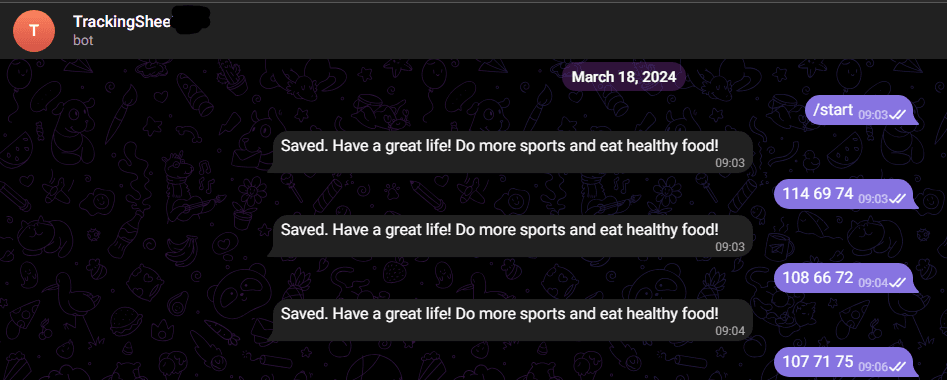
Data ingestion via Telegram 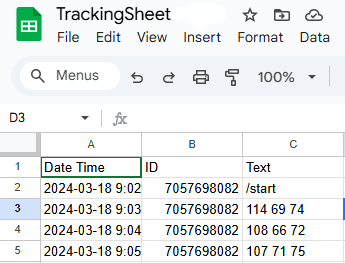
Ingested data in google sheets
With this data saved, I hope to gain better insight and control over my health 😃