Reusable Custom Function In Power Query (M)
Background
There was a case where I needed to perform a small transformation on flat-file data that was almost ready for consumption before loading it into a Power BI dashboard. However, the task felt too small — yet repetitive — to justify using a full ETL tool.
Yes, one could argue that it might be easier to load the data into an ETL tool (say, Altryx or KNIME), drag a couple of nodes, and write it out again as a flat file. On one hand, that is true. On the other hand, I would need to use two platforms for this purpose.
Why can’t I just do this directly in Power BI, not manually, and in a way that works for multiple datasets at once? That’s when I discovered custom functions.
The challenge is that custom functions are written in M. It looks daunting at first, but if you are familiar with programming logic or even DAX, it is actually manageable — as I found out.
However, a disclaimer: this approach is more suitable for small transformations. For complex transformations, I would definitely use a proper ETL tool.
Case Description
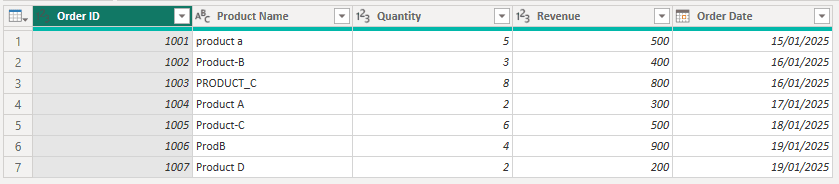
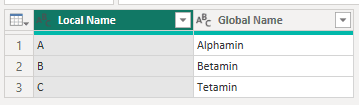
This case is fictious and only replication of the real case. I needed to fix product names and standardize them using a lookup table — mapping local names to global names. I have two tables stored in one folder. The idea is to clean the product names and map them to global names using the lookup table. I can do this manually for each table, but what if I have 10 or 20 tables?

Write Custom Function
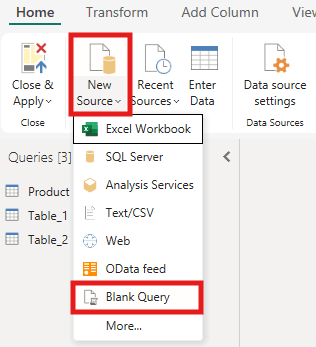
- Go to Home → New Source → Blank Query
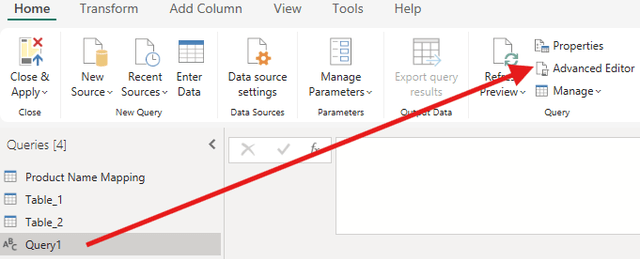
- Open Advanced Editor to write and edit the function
= (inputTable as table, productName as text) as table =>  // Here we specify input and output variable
  let
      addNormalizedColumn = Table.AddColumn(inputTable, "Normalized", each // Think about loop? Yes, we loop through each row and do the transformation
          let
              lower = Text.Lower([Product Name]),
              removeSymbols = Text.Select(lower, {"a".."z", "0".."9"}),
              selectOnlyLastLetter = Text.End(removeSymbols, 1),
              upper = Text.Upper(selectOnlyLastLetter)
          in
              upper, type text // We normalized the product name -- resulting in: producta, prodb, etc.
      ),
      mappedTable = Table.Join( // Join with the lookup table to map the product global name
          addNormalizedColumn,
          "Normalized",
          #"Product Name Mapping",
          "Local Name",
          JoinKind.LeftOuter
      ),
      handleNulls = Table.AddColumn( // We add "imaginary" conditional statement, if "Product Name" is not in the lookup table, it should be identified as "New Product"
          mappedTable,
          "New Global Name",
          each if [Local Name] = null then "New Product" else [Global Name],
          type text
      ),
      removeNormalized = Table.RemoveColumns(handleNulls, {"Normalized", "Global Name"}),
      renameColumn = Table.RenameColumns(removeNormalized, {{"New Global Name", "Global Name"}})

  in
      renameColumn
Then we can test the function via the UI.
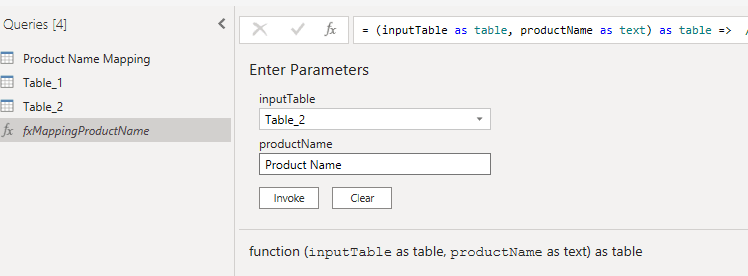
And this is the result we get.

Applying a Custom Function to Table(s)
Select the target table and go to Advanced Editor.
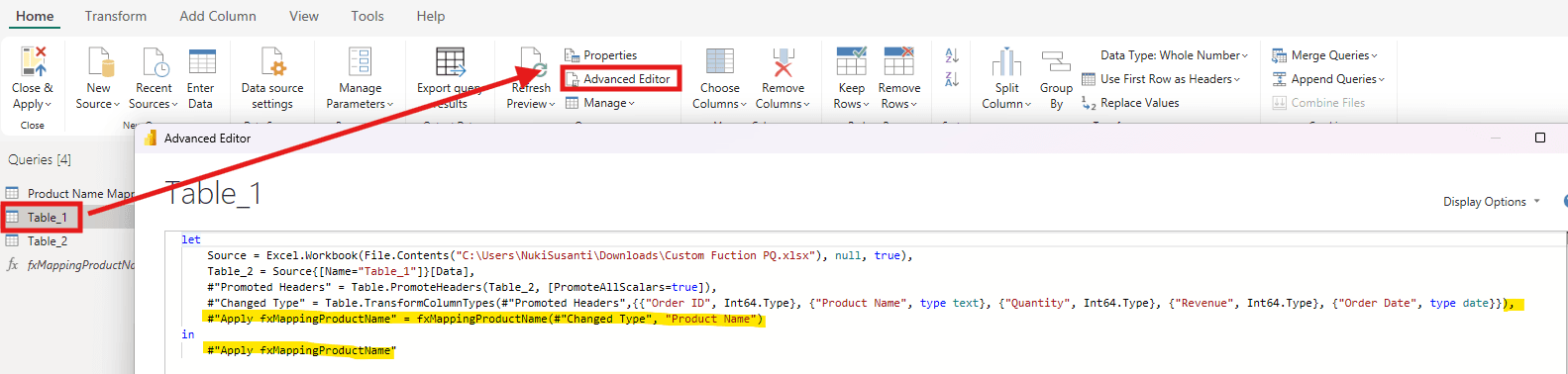
Let’s say we have multiple files in one folder. Go to Home → New Source → Folder → Combine & Transform Data. Then, select the correct sheet and apply exactly the same steps.